 Doorvia
1. Doorvia in brief
Doorvia is a field canvassing application (door-to-door). It works on a phone for field teams and on a computer for managers.
- A campaign = all the addresses in a sector (postal code, municipalities), displayed on a map.
- Each address has a status : to visit, absent, refusal, to come back, appointment, sale...
- The routes organise the passage: area, optimised order, person affected.
- Everything is synchronized between the team's phones, even after a switch without signal.
The roles
| Role | What it can do |
|---|---|
| Administrator | Everything: company, subscription, team, settings, campaigns. The person who creates the company is an admin. |
| Manager | Create and track campaigns and tours, see the live team, routes and all statistics. |
| Commercial | Prospects, makes and honours appointments, sees his schedule. |
| Field Prospector | Prospect and qualify addresses, make appointments for sales representatives. |
2. Create your account and business
- Open Doorvia and tap Create Account. Enter your email and choose a password (a verification code is emailed to you).
- On the Welcome screen, enter your company's SIRET number and tap Search : name and address are auto-populated from the official directory.
- Add your logo (optional), your name, and then Create My Business.
3. Install the app on the phone
Doorvia doesn't need app stores: it installs from the browser and then works like an app.
| Phone | Installation |
|---|---|
| Android (Chrome) | Open Doorvia, tap the menu ⋮ , then tap Install App (or Add to Home Screen). |
| iPhone (Safari) | Open Doorvia in Safari, tap Partager On the Home screen. |
| Computer | Chrome or Edge: Install icon in the address bar. Or just a favorite. |
Connect once with a network: the application will then open even offline.
4. Set up the company
Menu Dashboard › Settings (administrator).
Company Tab
- Contact information and logo (displayed at the top of the app for the whole team).
- Language of the application for the whole team: French, English, Spanish, German or Italian.
Prospecting tab
- Reasons for refusal and off-target reasons : the list proposed to the team when a door is qualified as "refusal" or "off-target" (e.g. "Already equipped", "Tenant", "Apartment"). They feed into the statistics.
- Form of the sheet : add your own fields (text, number, checkbox, drop-down list, date). Example for a heat pump installer: Type of heating (list: gas, oil, electric, wood), Owner (box), Surface ( number). You can change them at any time; a removed field keeps the values already entered.
- Tracking of movements : whether or not to record the routes of the routes (see Follow the team).
5. Invite the team
- Settings › Team › Add user : Enter the person's email and choose their role.
- Tap Email Him : A ready-made message shows them how to create their account.
- She creates her account with this email address : she automatically joins your company, with the right role.
You can change a role or remove someone at any time. During the trial, 3 salespeople/canvassers at most (admins and managers not counted).
6. Create a campaign
- Dashboard › Campaigns › New campaign.
- Enter a postal code and Search, then check the municipalities you want to include.
- Choose the additional information to load. Without checking anything, only the addresses are loaded, in a few seconds. Each checkbox added loading time:
- Buildings : house or building, year of construction. Required to target by type and age.
- Neighbourhood income (INSEE): standard of living and share of owners, per square of 200 m.
- DPE : energy label, heating.
- Real estate sales : sales prices of the last 5 years.
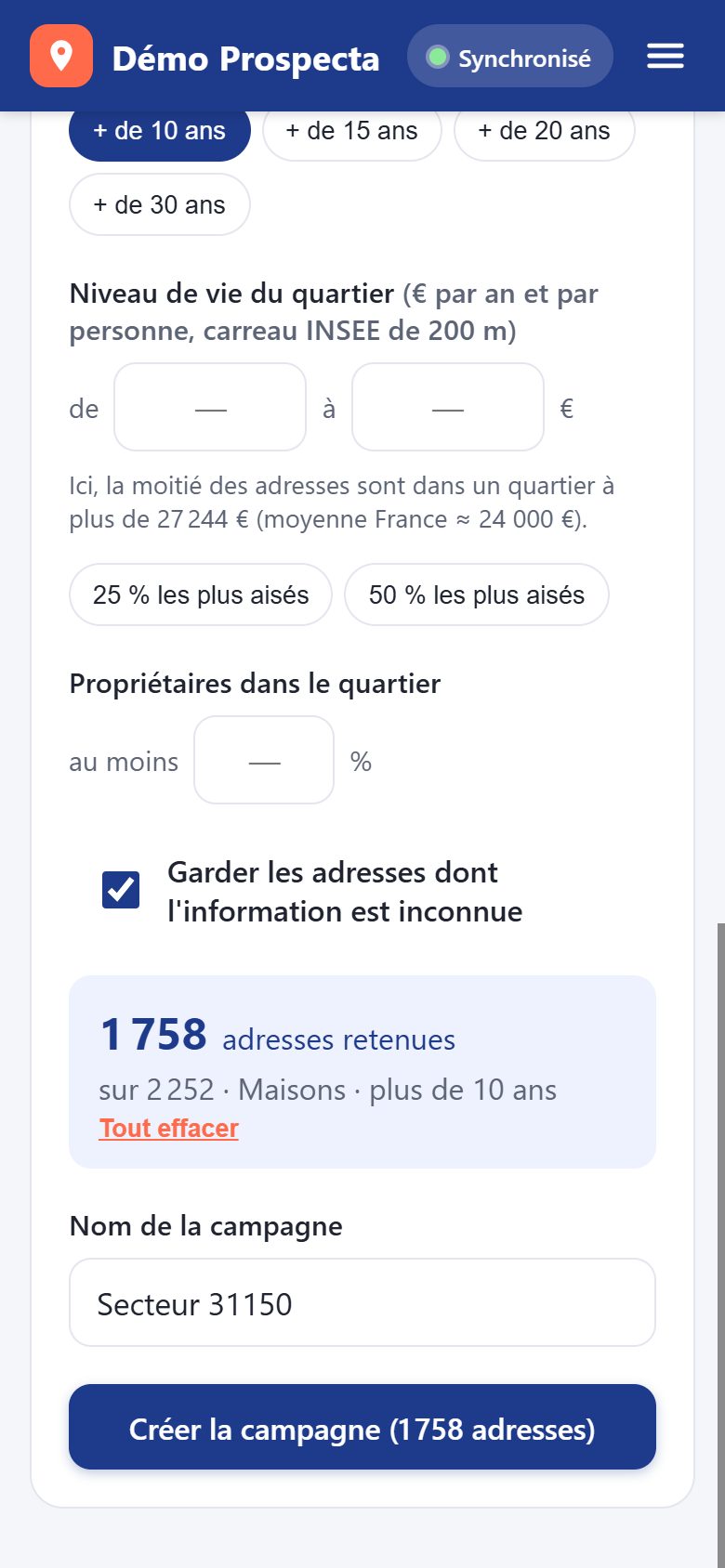
- Tap Upload Addresses, then adjust the targeting: type of housing, age, standard of living in the neighborhood, share of owners. The number of addresses retained is displayed live.
- Name the campaign and Create Campaign. It will appear immediately on the team's phones.
On the campaign map, the ▦ button displays the income of the district : the darker the square, the better the district.
7. Prepare for rounds
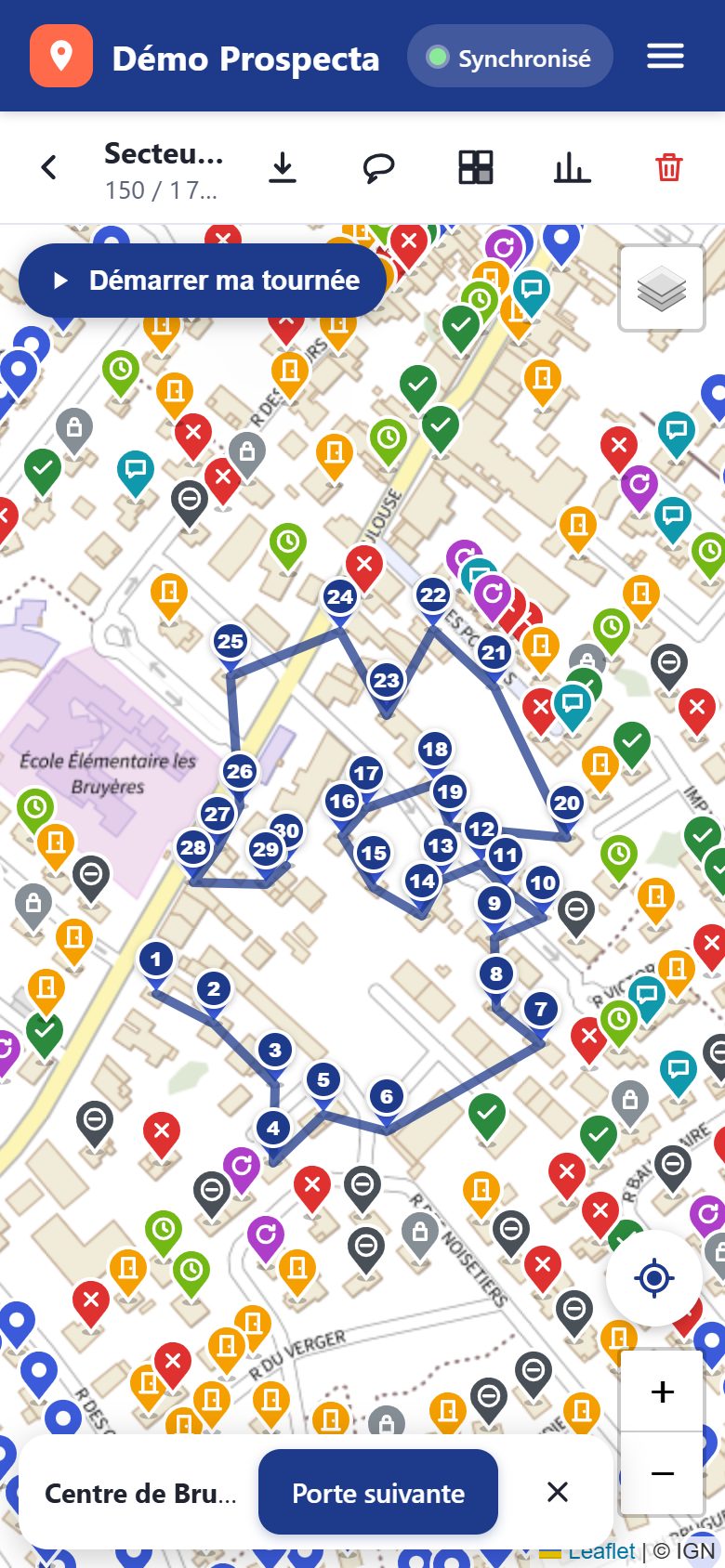
- Open the campaign and tap the lasso at the top.
- Circle the area with your finger (or mouse): the addresses inside are selected. Keep "Only the addresses to visit" so that you don't go back to the same ones.
- Choose on foot, bike/scooter or car and tap Optimize route : distance and duration are displayed (2 minutes per door counted).
- Give a name, a date, and assign the tour to one or more members, then Create Tour.
The Dashboard › Routes page lists all routes with their progress; a manager can reassign or delete them.
Offline map
Before leaving for an area without signal: in the campaign, button ⬇ Offline map, choose the basemap and download the area. The map will then be displayed without signal.
8. In the field
Start the tour
- Open the tour from Tours › Open on map.
- Tap Start My Route : Your location is shared with your manager until you tap Stop My Route. Keep the app open (the screen stays on).
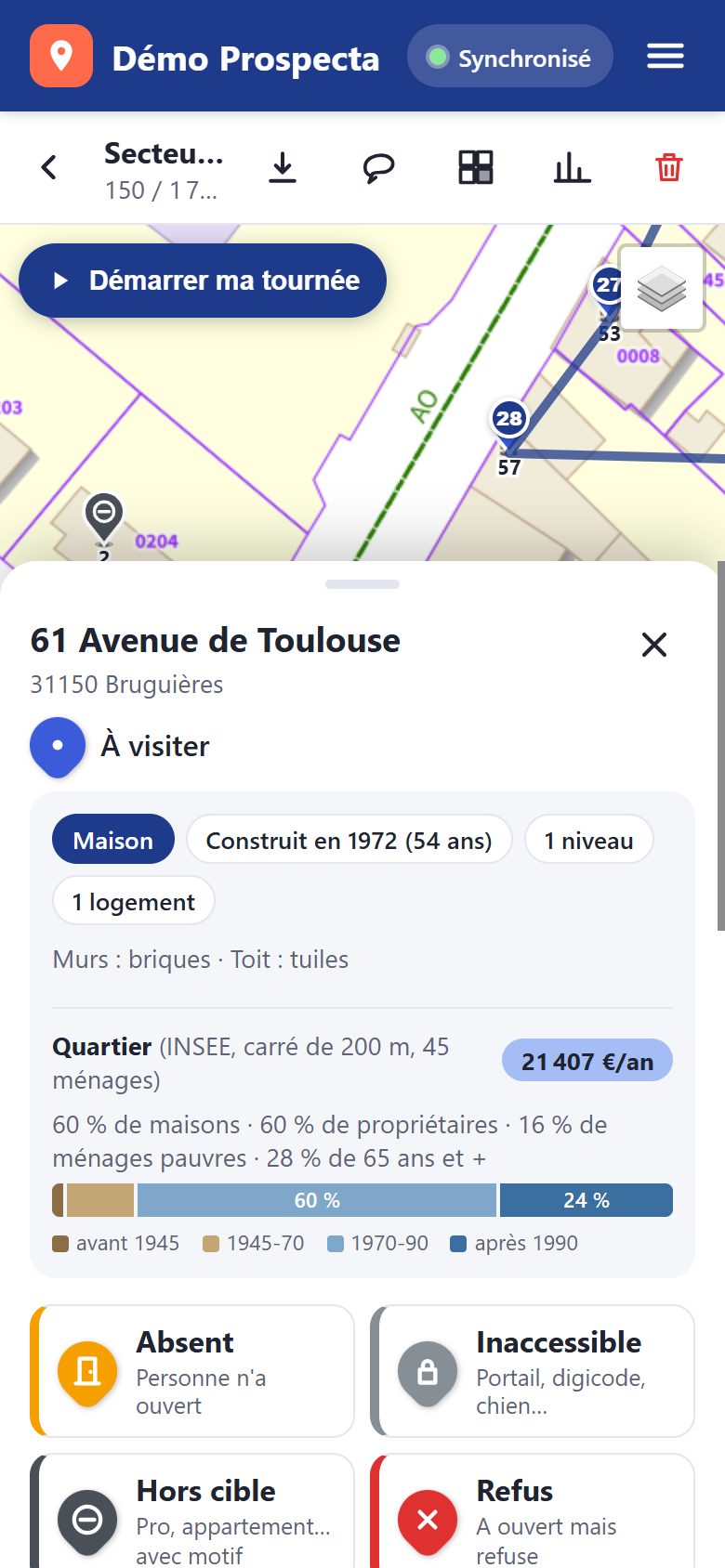
- Tap Next Door : the card takes you to the next address and opens its card.
Qualifying a door
| Status | When to use it |
|---|---|
| Absent | No one opened. |
| Inaccessible | Closed gate, digicode, dog... |
| Off-target | Not a possible client (professional, apartment, etc.) — with a reason. |
| Refusal | Opened but refused — with a reason. |
| Ironing | Interested but not available. |
| Argued | Once the presentation has been made, the person thinks. |
| Appointment | Appointment made: the appointment form opens immediately. |
| Sale | Signed! |
Each passage is kept (time, author). An appointment or a sale is never erased by a more recent "absent" passage.
The household sheet
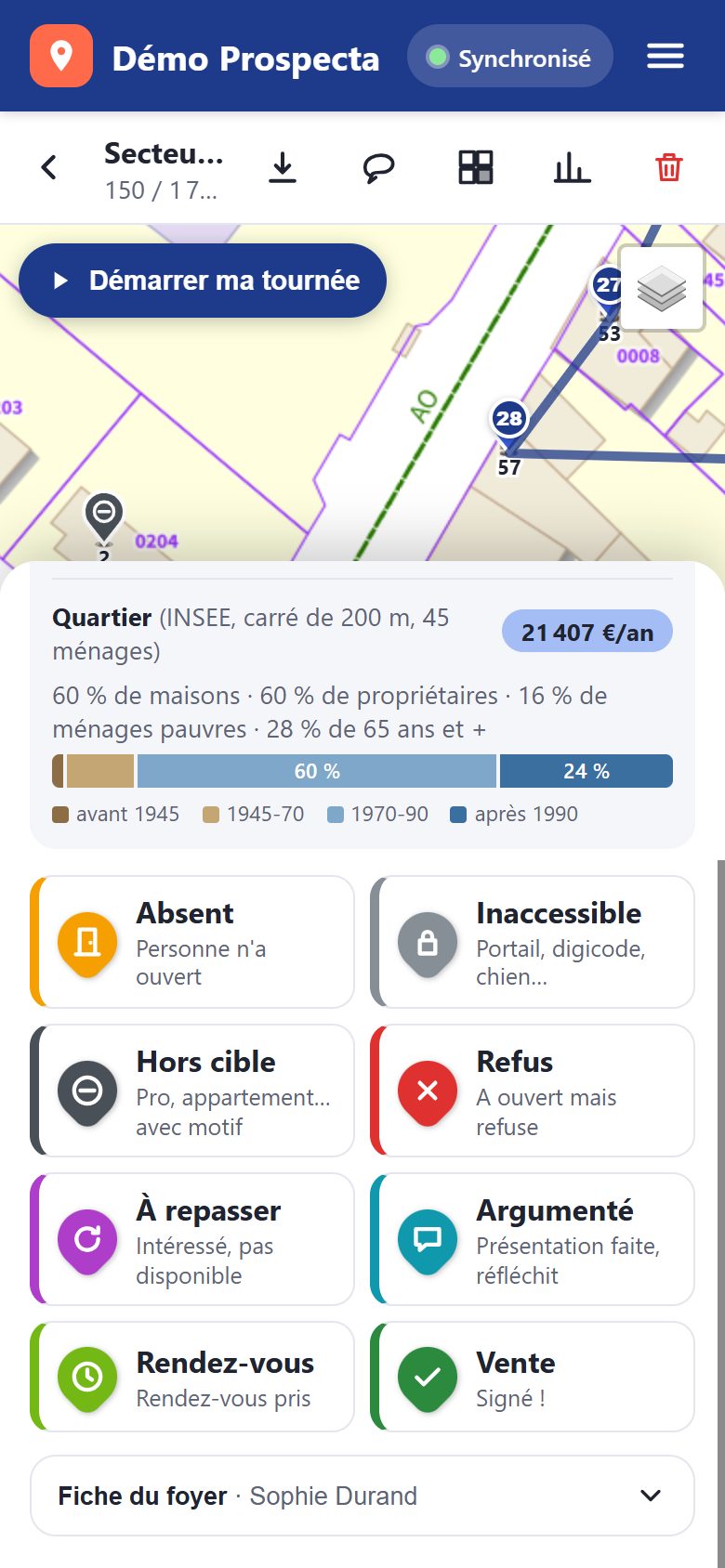
- Scan the mailbox : take a photo of the label, Doorvia reads the names and suggests the surname, first name and other occupants. Check, then Fill in the form (network required).
- Photo : photograph the house (roof, façade, etc.). The photos are kept on the phone and sent as soon as the network allows it.
- Fields save as soon as you leave them, even without signal.
9. Appointments and agendas
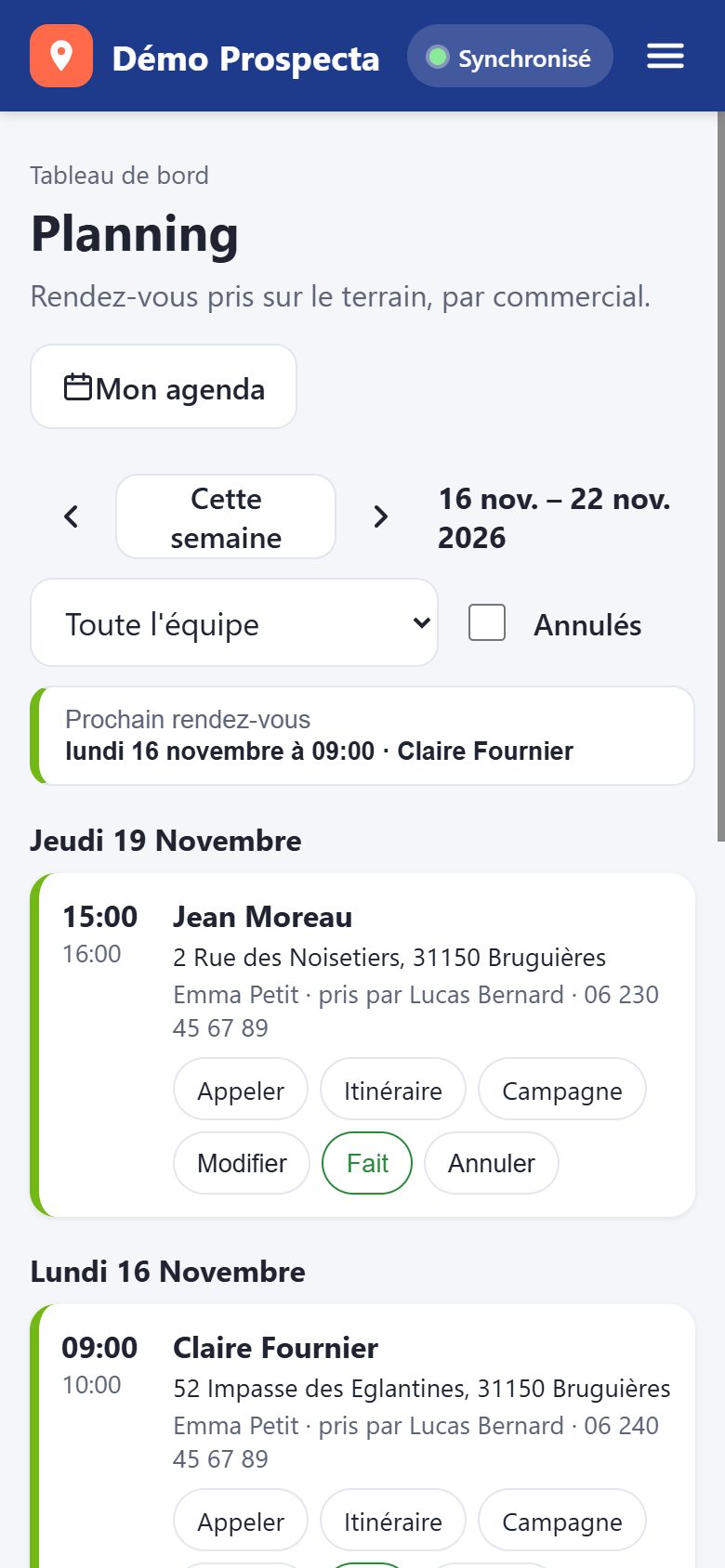
- When a door goes to Appointment, choose the date, time, duration, and sales rep. Its previously booked slots are displayed and a warning appears if there is an overlap.
- The appointment appears in Dashboard › Schedule.
- Every sales rep connects their calendar: Schedule › My Calendar › Connect Outlook / Microsoft 365 or Connect Google Calendar.
Once connected, each appointment assigned to them arrives in their calendar. If they move or delete it from the calendar, Doorvia is updated within 5 minutes. Their other events remain private: only "busy" slots are used to make appointments. For an iPhone or another calendar, the read-only link also works.
10. Follow the team
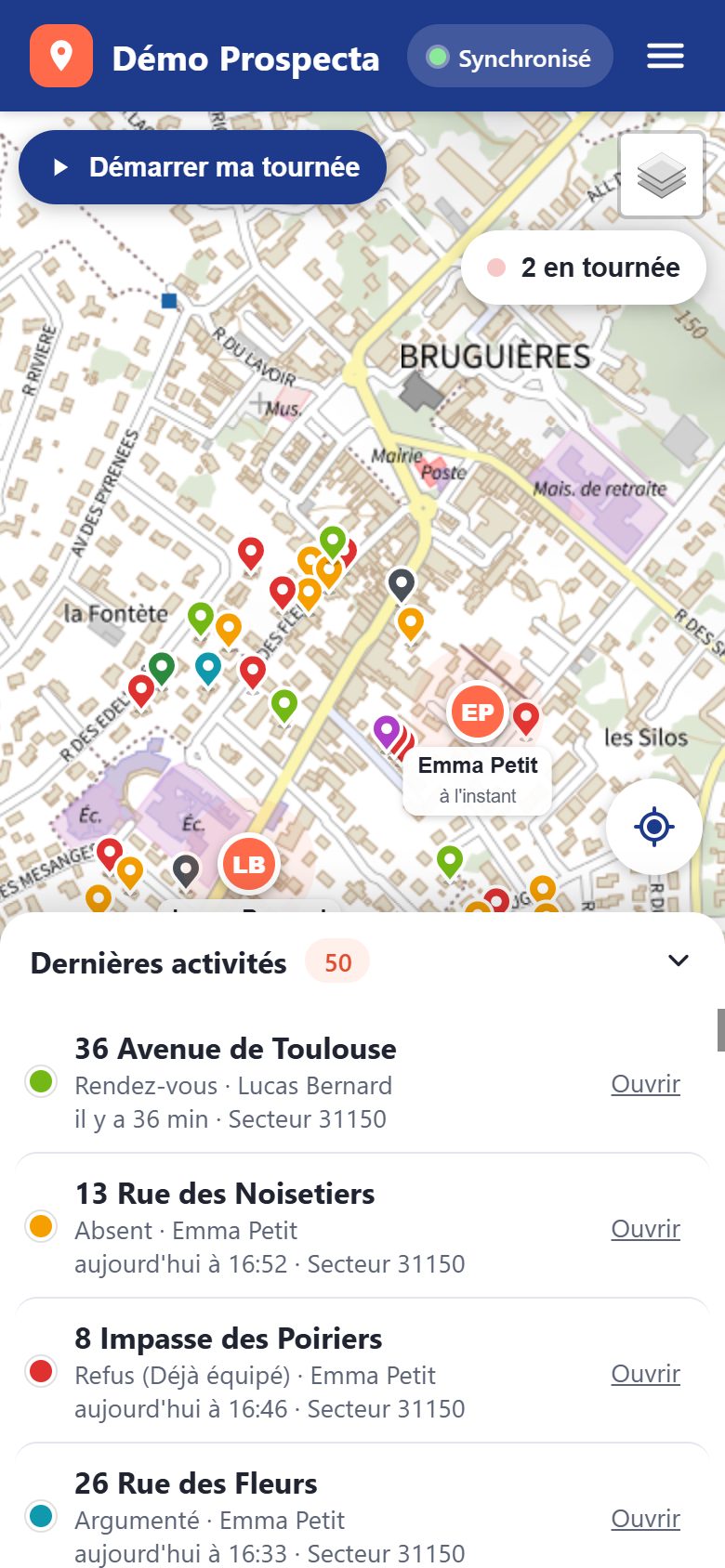
- Welcome Card : Members on tour flash; each qualified door appears in seconds in Latest Activities.
- Trips : replay of a member's day or week, with qualified gates along the way, kilometers and tour time.
- Statistics : visits by day, by user, by status and by reason for refusal; contact rate.
11. Offline and Sync
The indicator at the top of the screen shows the status: Synchronized, Synchronized..., or the number of actions to send. Without a network, everything continues to work on the phone: statuses, sheets, photos, appointments. As soon as the network returns, everything starts automatically, in order, without duplicates. Do not uninstall the application as long as there are actions "to be sent".
12. Trial and Subscription
| Offer | Price excl. VAT | Contents |
|---|---|---|
| Trial | Free, 15 days | All functions, 3 salespeople / canvassers at most. |
| Essential | 19 € / user / month | Campaigns, map, statuses, sheets, photos, offline, real-time, statistics. |
| Pro | 29 € / user / month | All the essentials + targeting and public data, optimized routes, GPS and catch-up tracking, planning and agendas, mailbox scanning. |
| Company | On quote | More than 20 users. |
For an annual payment, 2 months are free. To subscribe: Settings › Subscription, choose the offer and pay by credit card or SEPA direct debit (Stripe secure payment). The number of users billed automatically follows your team. Manage my subscription allows you to change cards, download invoices, change plans or cancel.
End of the trial without subscription : nothing is charged. The application goes to consultation; the entries made on the phones remain pending and leave as soon as the subscription is made. No data is lost.
13. Personal data (GDPR)
- Your data is hosted in France (Microsoft Azure, France Centre region) and separated from that of other companies.
- Prospecting individuals is based on legitimate interest: write down only useful information, inform people who request it and delete their data on request (household file: empty the fields).
- Do not enter sensitive data (health, opinions, etc.) in the notes.
14. Questions and Troubleshooting
A member doesn't see campaigns
Make sure they created their account with the guest email address (Settings › Team). Then they've had network at least once since.
"Action refused: insufficient rights"
Only admins and managers create or delete campaigns. Change the role in Settings › Team if necessary.
The position does not rise during the tour
Allow location to Doorvia in the phone's settings and keep the app on the screen: browsers pause location when the screen is off.
"Expired session"
Reconnect with the network (My Profile › Log out and then reconnect). Your entries are stored on the phone.
Change Language
Settings › Company › App Language (Admin): All members switch to the chosen language.
Need help?
Write to us from the contact form.